Referral Links
Put a Himalayan Guardian link on your website, and any booking that comes through it is credited to your account automatically.
This guide is for sales agencies and sales agents. Both work the same way — only the page you copy your link from differs.
No code, no API keys, and nothing to install. It is one link and one image.
How it works
flowchart LR
    A["Traveller on<br/>your website"] -->|clicks your link| B["himalayanguardian.com<br/>?agentRefCode=..."]
    B --> C["Traveller books"]
C --> D["Earnings credited<br/>to your account"]- You add a link to your site containing your personal referral code.
- A visitor clicks it and lands on the Himalayan Guardian booking page.
- If they place an order, the earnings for that order go to your account.
Our platform handles the tracking and the attribution. You do not need to report anything back to us.
Step 1 — Copy your booking link
Sign in to your Himalayan Guardian account, then in the sidebar open Promo & Commissions › Promo Codes. You can also go straight there:
The page is headed Referral Leads. Your Public Booking Link is in the panel at the top — click Copy.
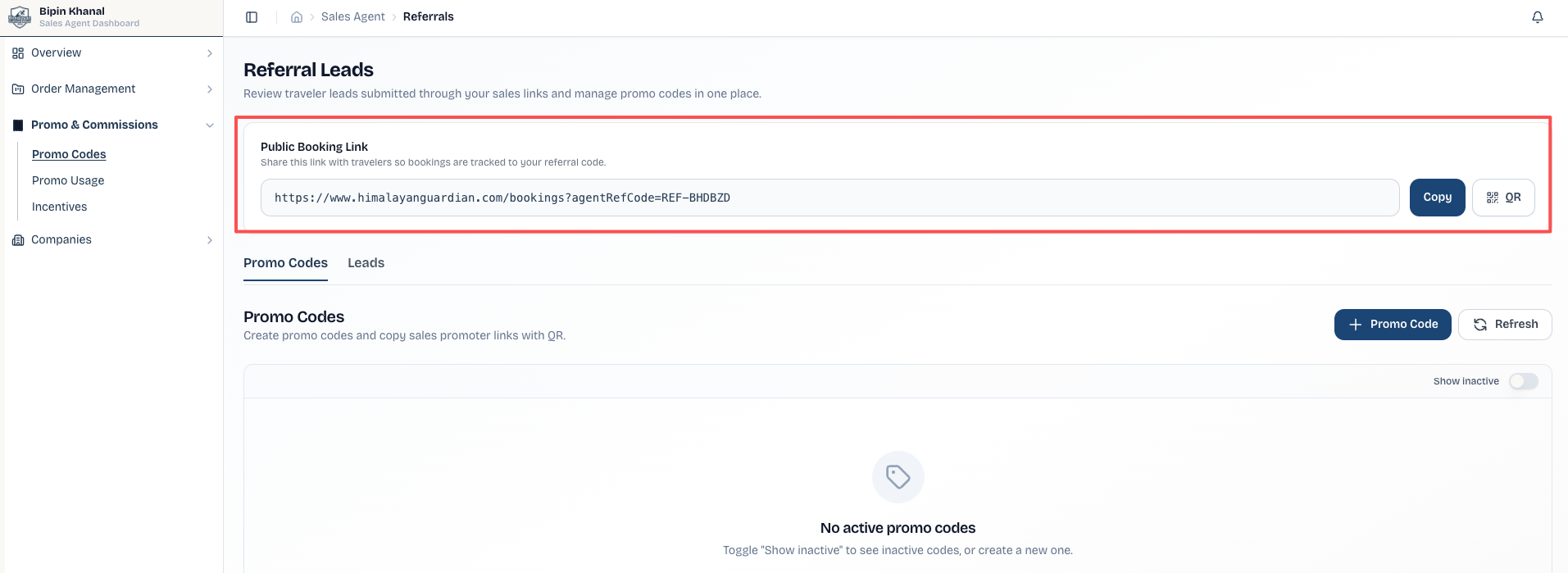
Your link looks like this, with your own code at the end:
Use the Copy button — do not type the link out
The agentRefCode value is what identifies you. Use Copy rather than selecting the text by hand or rebuilding it from an example, and paste it exactly as-is.
A wrong code means the booking is credited to someone else, and your link will still appear to work perfectly. This is the single most common setup mistake.
QR code for print and in-person
The QR button next to Copy turns the same link into a QR code. Useful for business cards, posters, trek brochures, or a card at a hotel desk — it tracks exactly like the link does.
Step 2 — Download the logo
Download the Himalayan Guardian logo — 180 × 180 PNG, transparent background.

Save it somewhere on your own website — most sites have a media library or an /images/ folder. Additional formats and sizes are on the Branding page.
Host the image yourself
Upload the logo to your own site rather than hot-linking it from ours. Your page will load faster, and the image will not break if we move a file.
Step 3 — Add the link to your website
Wrap the logo image in an anchor tag pointing at your booking link:
<a href="https://www.himalayanguardian.com/bookings?agentRefCode=REF-XXXXXX"
   target="_blank"
   rel="sponsored noopener">
  <img src="/images/himalayan-guardian-logo.png"
       alt="Book trekking insurance with Himalayan Guardian Nepal"
       width="180"
       height="180">
</a>
Replace two things:
| Replace | With |
|---|---|
REF-XXXXXX |
Your own code, from your Public Booking Link |
/images/himalayan-guardian-logo.png |
Wherever you saved the logo on your site |
What the attributes do
| Attribute | Why it is there |
|---|---|
target="_blank" |
Opens booking in a new tab, so the visitor does not lose your page |
rel="sponsored noopener" |
sponsored marks this as a paid/commission link, which search engines expect. noopener is a standard security precaution for new-tab links |
alt="..." |
Describes the image for screen readers and shows if the image fails to load |
width / height |
Stops the page jumping around while the image loads |
Why rel=\"sponsored\" matters
Because you earn from these links, Google's guidelines ask that they be marked sponsored (or nofollow). Leaving it off can count against your own site's search ranking. It costs you nothing to include and protects your site.
Other ways to add it
No logo needed — any text works.
- Edit the page or post.
- Add an Image block and upload the logo.
- Select the image, click the link button (🔗) in the toolbar.
- Paste your booking link and apply.
- Open the link settings and turn on Open in new tab.
To add rel="sponsored", switch that block to Edit as HTML and use the snippet above.
- Add an image element and upload the logo.
- Open the image settings and choose to add a link.
- Select Web address and paste your booking link.
- Set it to open in a new tab.
These builders may not expose rel, which is fine — the link still tracks correctly.
Paste your booking link directly into an email signature, a social media bio, or a post. It works anywhere a link works.
Shortened links are fine only if the shortener preserves the full URL including ?agentRefCode=....
Use the QR button on your promo codes page to download a QR code for the same link.
Works well on business cards, trek brochures, posters, hotel desk cards, and trade show handouts. Scans track exactly like a click does.
Step 4 — Test it
Before you rely on it:
- Open your page and click the link.
- Check the address bar on the page that loads. It must still contain
?agentRefCode=followed by your code.
If the code has disappeared from the URL, the link is not tracking. See below.
If bookings are not being credited
The most common cause is something stripping the ?agentRefCode=... part off the end of your link.
| Symptom | Likely cause |
|---|---|
| The code is missing from the address bar after clicking | Your site, a plugin, or a redirect is rewriting the link. Link directly to the full URL, without an intermediate redirect |
| You used a link shortener | Some shorteners drop query parameters. Test it, or link directly instead |
| The code is present but bookings are not credited | Confirm the code matches your Public Booking Link exactly — check for a missing character or a changed prefix |
| The link came from a document | Word processors and PDF exporters sometimes truncate long URLs. Always copy from your promo codes page |
If the code survives in the address bar and orders still are not credited, contact us with the order reference and your referral code.
Good places to put your link
- Your trekking package or tour pages, near the itinerary
- A "Travel insurance" or "Before you travel" page
- Your booking confirmation emails
- Your email signature
- Your social media profile links
The closer the link is to where someone is planning a trek, the better it tends to perform.
Other ways to integrate
A referral link is the simplest of the three HGN integration approaches. If you need travellers to book without leaving your site:
| Approach | What it gives you | |
|---|---|---|
| 2 | Booking Widget | The booking flow embedded in your own pages |
| 3 | API Integration | Full control, built into your own system |
Need help?
- Email: tech@himalayanguardian.com