Integration
Everything you need to embed the booking widget on your site. Budget about 15 minutes.
Before you start
Both values are on one screen in your agency dashboard, under Booking Widget › Settings.
| Value | Example | Where it goes |
|---|---|---|
| Agency slug | annapurna-trails |
The iframe URL path |
| Publishable key | pk_live_AbCdEfGhIjKlMn... |
The iframe URL query string |
The dashboard also assembles both into a ready-to-paste Embed URL. Copy that rather than building the URL by hand.
Optional:
| Value | Example | Notes |
|---|---|---|
| Return URL | https://your-agency.com/booking-complete |
Where the customer lands after payment. If unset, HGN uses its hosted result page |
Branding — logo and primary colour — is configured once in the HGN dashboard and applies automatically. No code changes are needed when branding is updated.
Where to find these in the dashboard
In the HGN dashboard sidebar, open Booking Widget › Settings.
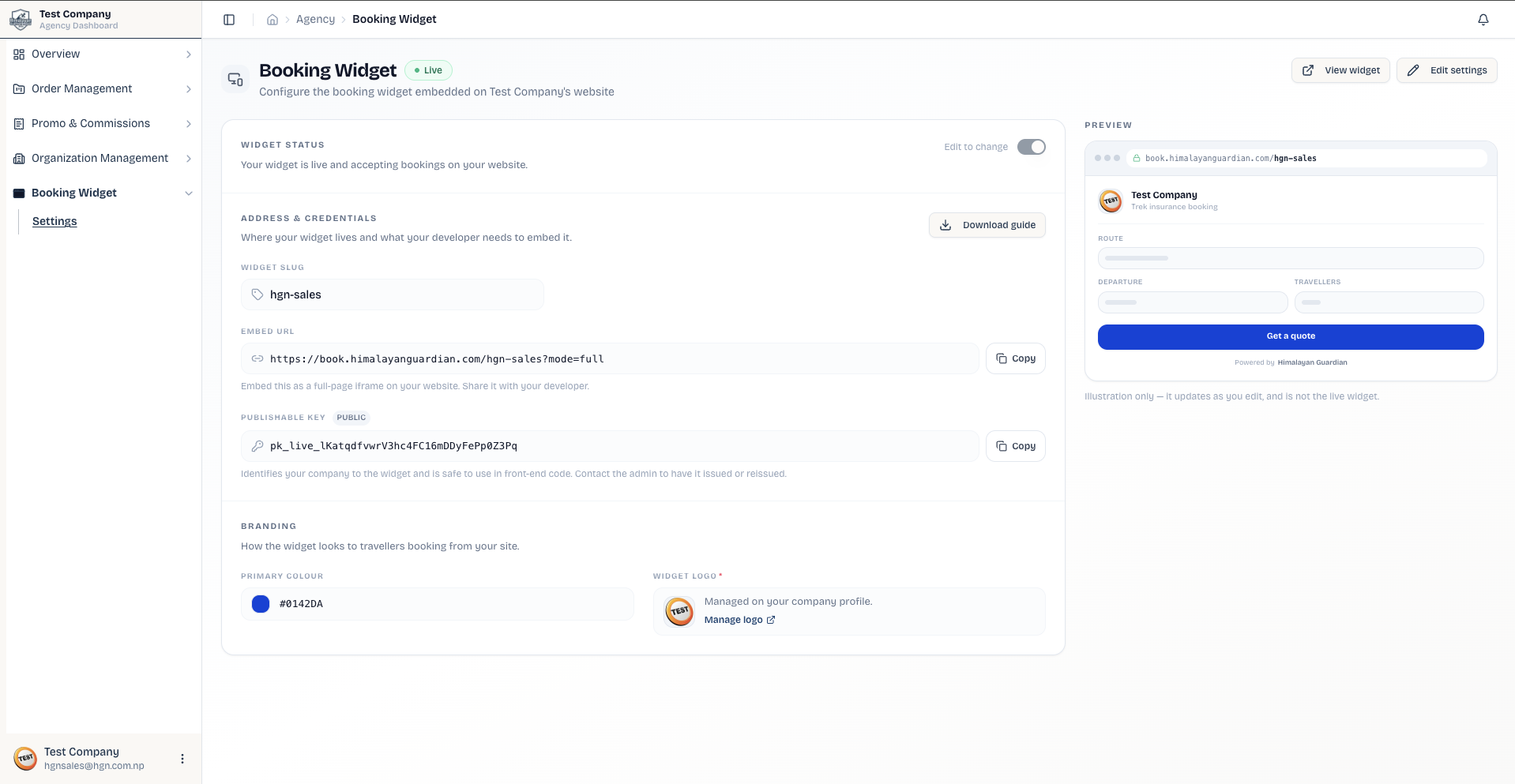
The page is three sections plus a live preview.
| Section | Field | What it is |
|---|---|---|
| Widget status | (toggle) | Master on/off switch. The widget only accepts bookings while this is on |
| Address & credentials | Widget slug | Your agency slug. Set this and save to generate the embed URL |
| Embed URL | The full URL to put in your iframe. Copy it and give it to your developer | |
| Publishable key | Your pk_live_… key, marked Public. Safe to paste into page source |
|
| Branding | Primary colour | Buttons, focus states, and accents inside the widget |
| Widget logo | Shown in the widget header. Managed on your company profile — use Manage logo |
Two shortcuts live in the page header: View widget opens your live widget in a new tab, and Download guide gives you a PDF of this integration guide to hand to a developer. The Preview panel at the bottom shows the widget as travellers will see it, with your branding already applied.
The key is issued by HGN, then shown to you
The publishable key is generated for your company by an HGN administrator. Once issued it appears under Address & credentials — you no longer need to email anyone for it. If the field reads No key issued yet, contact your account manager to have one issued.
The Embed URL stays blank until you have both halves
It needs a saved slug and an issued publishable key. With only one of them the field shows a hint instead of a URL — that is the dashboard refusing to hand you an embed URL that would load a dead widget.
Two things can block you from going live
The Widget status section lists these under Required before the widget can go live, and the toggle stays locked until both are met.
- Primary colour is validated for contrast. Colours that are too light, too dark, or that no readable text colour sits on are rejected with an explanation. Pick a mid-tone brand colour — the same one your buttons use.
- A company logo is required. Set it on your company profile; the Manage logo link beside the Widget logo field takes you there.
Turn the widget on before testing
The badge beside the page title reads Disabled until you enable it, and Live once it is on. A disabled widget will not accept bookings, which looks identical to a broken integration from the outside.
The Widget status section spells out which state you are in — "Your widget is live and accepting bookings on your website" or "Your widget is offline. Visitors cannot book while it is disabled." If anything is still missing, it lists it under Required before the widget can go live.
Five-minute quickstart
Create a page at /insurance on your website with exactly this HTML. Replace your-agency-slug and pk_live_XXXXXXXX with your own values.
Use your own Embed URL, not the host shown here
The examples below use book.hgn.com.np, HGN's sandbox. Paste the Embed
URL from Booking Widget › Settings instead — it carries the right host
for your account. Shipping the sandbox host would run real customers'
bookings against test data.
See Environments for the full host list.
<!doctype html>
<html lang="en">
  <head>
    <meta charset="utf-8" />
    <meta name="viewport" content="width=device-width, initial-scale=1, viewport-fit=cover" />
    <meta name="robots" content="noindex" />
    <title>Book trek insurance — Your Agency</title>
    <style>
      html, body { margin: 0; padding: 0; height: 100%; overflow: hidden; }
      .booking-frame { display: block; width: 100vw; height: 100vh; border: 0; background: #fff; }
    </style>
  </head>
  <body>
    <iframe
      class="booking-frame"
      src="https://book.hgn.com.np/your-agency-slug?mode=full&pk=pk_live_XXXXXXXX"
      title="Book trek insurance"
      allow="payment; clipboard-write"
    ></iframe>
  </body>
</html>
Then link to it from your navigation, hero section, trek package pages, or any relevant call to action:
Deploy, then test the booking flow end to end before sharing the link with customers.
Step by step
Step 1 — Get credentials
Open Booking Widget › Settings in your agency dashboard and set up:
- Widget slug — a URL-safe identifier such as
annapurna-trails. You choose it; the dashboard checks availability as you type. - Primary colour — used for buttons, focus states, and accents inside the widget. Validated for contrast.
- Widget logo — shown in the widget header throughout the booking flow. Set on your company profile.
Then copy the Publishable key and the Embed URL. If no key has been issued yet, ask your HGN account manager for one.
The publishable key is safe in your HTML
Unlike the Partner API client secret, a publishable key is designed to be visible in page source. It identifies your agency; it does not authorise anything on its own.
Step 2 — Build the booking page
Add a dedicated route. /insurance is usually the clearest choice; /book, /coverage, and /trek-insurance also work.
The page must contain only the iframe
Do not include your site header, navigation, footer, sidebars, wrappers, or promotional content on this page. The widget renders its own header, footer, and booking flow inside the iframe.
A clean iframe-only page prevents duplicate navigation, layout conflicts, scroll issues, and broken mobile behaviour.
Step 3 — Link to the booking page
Good places for that link:
- Main navigation
- Homepage hero section
- Trek package pages
- Insurance or safety information pages
- Email or campaign landing pages
Step 4 — Configure a return URL
After payment, the gateway redirects the customer to a result page. You have two options.
Do nothing. If you do not configure a return URL, the customer finishes on HGN's own hosted result page, which shows the correct state for success, failed, cancelled, and expired payments — including multi-traveller bookings, which a custom page cannot currently verify.
Recommended for the first version of your integration, and for most agencies permanently.
Changed in widget 1.1
The result page is now HGN's standard hosted page rather than a per-agency branded one. It is the same page HGN's own customers see. Your branding still applies throughout the booking flow itself — only the final post-payment screen is HGN's.
If a branded result screen matters to you, use Option B and build it on your own domain, where you control it completely.
Create a page such as /booking-complete, then append a URL-encoded return_url to the iframe source:
<iframe
  src="https://book.hgn.com.np/your-agency-slug?mode=full&pk=pk_live_XXX&return_url=https%3A%2F%2Fyour-agency.com%2Fbooking-complete"
  title="Book trek insurance"
  allow="payment; clipboard-write"
></iframe>
Two requirements
return_url must be URL-encoded and must use https://.
If you build your own result page you must verify the payment server-side. That needs Partner API credentials, and multi-traveller bookings cannot currently be verified — read Payment Verification in full before choosing this option.
Step 5 — Deploy and test
- Open
your-agency.com/insurancein a browser. - Confirm the HGN widget loads.
- Walk through the booking flow.
- Click Pay.
- Complete payment using the available test method or sandbox account.
- Confirm the customer lands on the correct result page with the expected status.
Content Security Policy
If your site uses a strict CSP, allow the HGN booking origin so the iframe can load:
Merge, do not replace
Depending on your existing CSP, you may need to merge this directive with your current header rather than replacing the whole thing.
Local testing
The embedding page must be served over HTTPS
The widget only allows itself to be framed by https:// pages. A page served from http://localhost:8080 — or from any plain-HTTP staging server — will not load the iframe. The browser console reports a refusal to frame.
This is deliberate: a booking flow that takes card payments should never be embedded by an unencrypted page.
Three ways to test before you deploy:
Open your Embed URL in a browser tab, on its own. This exercises the entire booking flow, your branding, and payment — everything except your page's own layout.
Use this for almost all testing. Only the framing itself needs an HTTPS host.
Serve your page over HTTPS locally so framing works end to end.
# Trusted local certificates
mkcert -install && mkcert localhost

# Then serve with them, e.g.
npx serve . --ssl-cert localhost.pem --ssl-key localhost-key.pem
Framework dev servers usually have a flag for this — for example next dev --experimental-https or vite --https.
Opening the HTML file directly from disk with a file:// URL is not a valid test.
For an HGN-side sandbox, request a sandbox publishable key from your account manager. Sandbox keys are separate from live keys.
Generate the code with an AI assistant
If you would rather have an AI coding assistant produce the integration, copy the prompt below into Claude, ChatGPT, Cursor, Copilot, or a similar tool. Fill in the four values at the top first.
Copy this prompt
I'm integrating the Himalayan Guardian Nepal (HGN) booking widget into my agency's
website. Please produce the complete code for the integration.

## My setup
- Agency slug: <YOUR_AGENCY_SLUG>
- Publishable key: <YOUR_PUBLISHABLE_KEY>
- Agency display name: <YOUR_AGENCY_NAME>
- Site framework: <YOUR_FRAMEWORK>
- (Optional) Custom return URL after payment: leave blank to use HGN's hosted result
  page, or set to an https URL on my domain, for example
  https://your-agency.com/booking-complete.

## How the widget works
The widget runs at https://book.hgn.com.np and embeds as a single
full-page iframe on my site. The customer sees my agency's domain in the URL bar, my
agency's logo, and my agency's primary colour. Branding flows automatically from my
HGN dashboard settings.

The integration is a single HTML page on my site, typically at /insurance or /book,
that contains nothing except a full-viewport iframe pointing at the HGN widget URL.

## What I need you to produce

### 1. The booking page
A new page at /insurance on my site. Use whatever routing convention matches my
framework. For Next.js App Router, use app/insurance/page.tsx. For plain HTML, use an
insurance.html file at the site root. For Astro, use src/pages/insurance.astro.

The page must:
- Be 100vw x 100vh with nothing else on the page, no nav, and no footer.
- Contain exactly one iframe with these attributes:
  - src="https://book.hgn.com.np/<AGENCY_SLUG>?mode=full&pk=<PK>"
    If a custom return URL was set, also append
    &return_url=<URL-ENCODED-RETURN-URL>.
  - title="Book trek insurance with <AGENCY_NAME>"
  - allow="payment; clipboard-write"
  - Inline styles: display:block; width:100vw; height:100vh; border:0; background:#fff;
- Set <meta name="robots" content="noindex" /> on the page.
- Page title: "Book trek insurance — <AGENCY_NAME>".
- Set <meta name="viewport" content="width=device-width, initial-scale=1,
  viewport-fit=cover" />.
- Apply this exact CSS to html and body:
  html, body { margin: 0; padding: 0; height: 100%; overflow: hidden; }

Do not add:
- The agency's nav or header on this page.
- The agency's footer on this page.
- Any padding, margin, or wrapper around the iframe.
- A sandbox attribute on the iframe.
- Any JavaScript. This page is iframe-only.

### 2. A nav link
A small HTML snippet linking to /insurance from anywhere on my site:
<a href="/insurance">Book trek insurance</a>
Adapt the styling to match my site's existing nav components if I mention any
conventions. If I have not given a framework, give plain HTML.

### 3. Optional return URL handler
Only produce this if I supplied a custom return URL above.
Create a small page at the return URL path, for example /booking-complete, that:
- Reads the status and paymentRef query string parameters on page load.
- Does NOT trust the status query parameter for anything that matters.
- Leaves a clearly marked TODO where server-side verification goes, and shows a
  neutral "we are confirming your payment" state until it is filled in. Verification
  uses the authenticated HGN Partner API
  (GET /api/external/v1/orders/<paymentRef>/payment-status) and needs credentials I
  do not have yet, so do not invent an unauthenticated endpoint or hard-code a token.
- Shows different UI for success, failed, cancelled, and expired.
- Has a Back to homepage link at the end.
If no custom return URL was supplied, skip this. The customer lands on HGN's hosted
result page automatically.

## Output format
Produce three clearly labelled code blocks, or two if no return URL was supplied:
1. The booking page: full file content with the framework-appropriate filename as the
   heading.
2. The nav link snippet: the anchor tag.
3. The return URL page, only if I supplied a custom return URL: full file content.

After the code, give me a 4-6 line "what to do next" section:
- Where to put each file in my project.
- How to deploy.
- How to test the integration.

Do not ask follow-up questions. If anything is ambiguous, use sensible defaults and
call them out in a comment at the top of the file. Use my exact agency slug,
publishable key, and agency name values in the output. Do not keep them as
placeholders.

If I gave an unusual framework, CMS, or no-code builder, output the closest reasonable
option. Use plain HTML if unsure.

## One important rule
The iframe src value must be exactly this shape, with no extra query parameters, no
different mode value, and no wrapping URL:
https://book.hgn.com.np/<AGENCY_SLUG>?mode=full&pk=<PK>
Only append &return_url=<URL-ENCODED> if the agency configured one.
Check what it produces
AI assistants frequently add a wrapper div, a sandbox attribute, or your site's header and footer to this page. All three break the integration. Compare the output against the quickstart HTML before deploying.
Implementation checklist
- Agency slug chosen and saved in the dashboard
- Publishable key issued and visible under Address & credentials
- Embed URL copied from the dashboard, not hand-built
- Widget logo set on the company profile, primary colour saved without a contrast warning
- Enable booking widget turned on
- Booking page created at
/insurance, containing only the iframe - The page is served over HTTPS — the widget refuses to be framed by HTTP
-
allow="payment; clipboard-write"present on the iframe - No
sandboxattribute on the iframe - Navigation link added
- Return URL decided — HGN hosted, or your own page with server-side verification
- CSP updated if you use one
- Full booking flow tested end to end, including payment
- Result page confirmed for success, failed, cancelled, and expired
- Tested a multi-traveller booking, not just a single traveller
Next steps
- Payment Verification — required if you built your own result page
- WordPress — if your site runs on WordPress
- Troubleshooting — if something is not working